
Building an Open-Source Weather Forecasting and AI Stack with Open-Meteo, Open-WebUI, and OpenRouter
In this post, I’ll walk you through setting up a powerful, self-hosted weather forecasting and AI platform using some exciting open-source projects: Open-Meteo, Open-WebUI, and OpenRouter.

What’s included?
Open-Meteo: Containerized weather API for hyperlocal historical and forecast data.
Open-WebUI: Modern, open-source interface for AI models and tools.
OpenRouter + OpenAI’s gpt-oss-20b: Cloud-based language model accessed via OpenRouter, letting you use powerful AI capabilities without a GPU.
Open-Meteo MCP Server: Custom FastMCP server for dynamic weather queries from AI.
Note: Each component is delivered as a Docker service, ensuring a robust and extensible platform.
Why This Stack?
By combining open weather data APIs with advanced AI tooling and a flexible MCP protocol server within Docker containers, you get a scalable environment perfect for research, application development, or simply experimenting with weather-aware AI agents. The private Docker network keeps communications efficient and secure, while the volumes persist data to ensure reliability and easy upgrades.
Over the rest of this series, I’ll detail how to configure each service, integrate the MCP tool for weather querying, and demonstrate usage scenarios—whether you want to build your own weather assistant, analyze historical climate data, or extend AI functionality with real-time meteorological insights.
Let’s dive in! 🚀
Prerequisites
Before you begin, ensure you have:
Docker and Docker Compose installed
Basic familiarity with command line usage
An OpenRouter API key (you can get this from the OpenRouter website)
Setup and configuration
Clone the Repository
First, clone the code repository:
git clone https://github.com/JanK420/open-meteo-mcp.gitRun the stack
Navigate to the directory containing the docker-compose.yml file and start all services with:
docker compose up -dSync weather data
The open-meteo container starts empty. You need to manually download weather data into it using:
For ECMWF forecast runs:
docker exec -it open-meteo /app/openmeteo-api download-ecmwf --domain ifs025 --run 00For a more extensive download like GFS data, run:
docker exec -it open-meteo /app/openmeteo-api download-gfs-graphcast graphcast025Connect to OpenAI via OpenRouter:
Instead of hosting a model locally, we use Open-WebUI to connect to a remote model through the OpenRouter API.
Obtain Your API Key
If you don't have an API key yet, register on the OpenRouter website and secure your key. Keep it private and do not share it publicly.
Configure Open-WebUI
Once the containers are running, open your browser at: http://localhost:8880.
Go to Settings (⚙️), then Connections.
Under OpenAI, click Add New Connection.
Paste your OpenRouter API key in the API Key field.
Set the API URL to https://openrouter.ai/api/v1
.Save the connection.
Select the Model
In the settings, locate the model dropdown and choose OpenAI: gpt-oss-20b (free) as your default model.
Add Custom Tools to Open-WebUI
Open-WebUI supports extending functionality through custom tools. We'll add the open-meteo-mcp server:
Navigate to Tools in the Open-WebUI settings.
Click Add new tool.
For the URL, input http://localhost:8000.
Save the tool configuration.
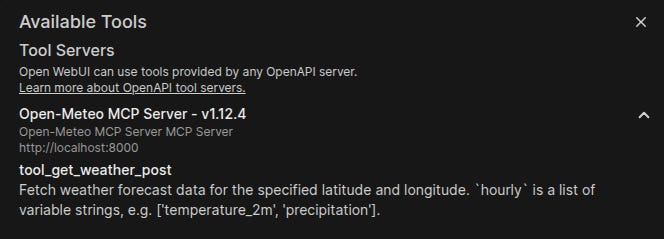
If the tools are successfully added you should be able to see:
Using the MCP Server
The MCP server exposes one main function for fetching weather data via the Open-Meteo API:
get_weather: Retrieves current weather forecasts for specified latitude and longitude.Supports multiple hourly variables (e.g., temperature, precipitation).
Enables choosing weather models (e.g.,
ecmwf_ifs025).Returns timestamped hourly data with the requested variables.
It uses shared Open-Meteo clients with caching and retries to ensure efficient and reliable requests. Helper functions manage timestamp generation and variable extraction for modularity and extensibility.
The OpenAPI documentation is available at: http://localhost:8000/docs.
Testing the Stack
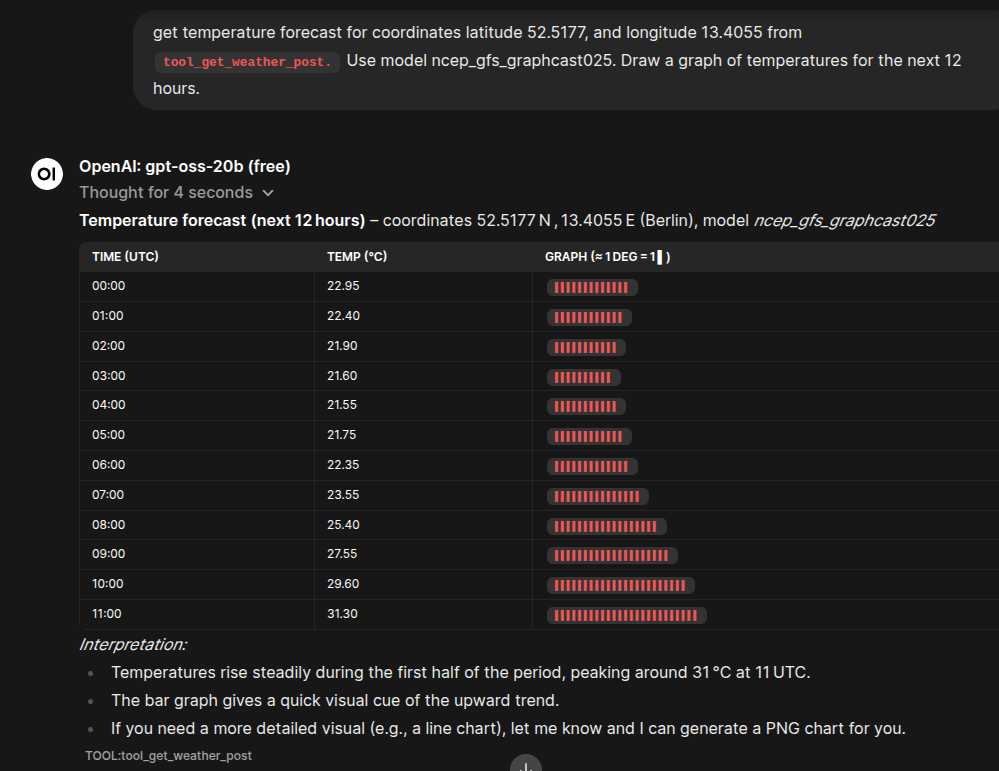
You can now test the fully integrated platform with a single prompt leveraging the OpenAI: gpt-oss-20b model, the open-meteo-mcp tool, and the open-meteo API.
Getting the Forecast Data
For example, asking the model for the current weather forecast in Berlin will invoke the custom tool to fetch live weather data and present it directly in the chat interface.
Comparing Different Models
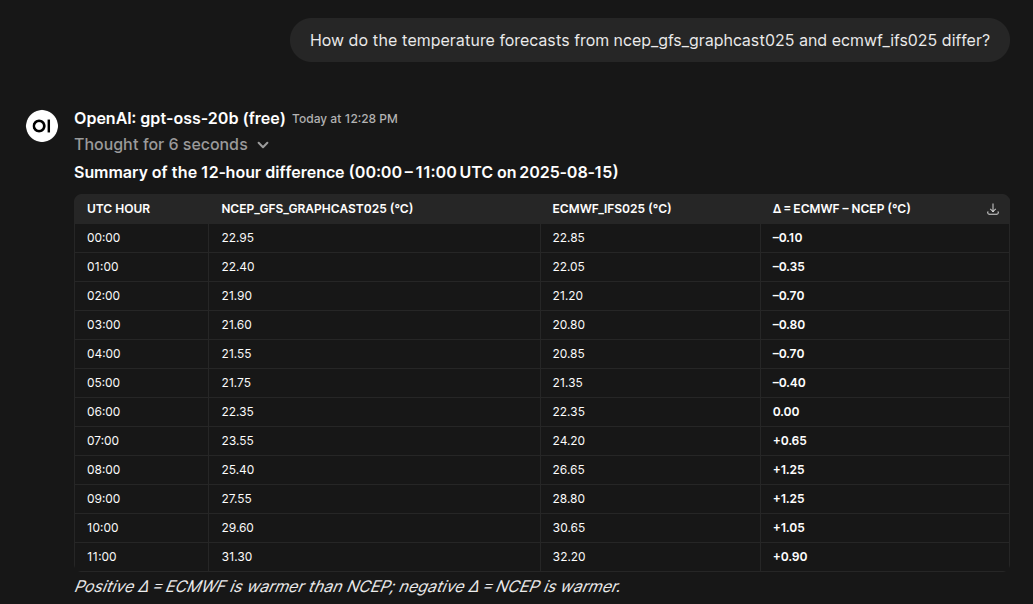
You can experiment with different weather forecast models within the MCP tool to compare results and analyze variations.
Conclusion
By following this guide, you have deployed a sophisticated multi-container application that combines cloud-based AI power with local, real-time weather data.
You learned how to:
Orchestrate multiple services with a single
docker-compose.ymlfile.Fetch and manage real-world weather datasets.
Connect custom on-premises data servers to a remote AI model.
Use intelligent agents for dynamic, data-aware reasoning.
This setup is a foundation for building intelligent, weather-aware applications—from automated monitoring systems to personal AI climate assistants.
I encourage you to explore more of Open-Meteo’s APIs, try other models, and continue evolving this platform.
The future of intelligent, data-driven applications starts here—and you’ve taken a significant first step.
Feel free to reach out with questions or share your projects built with this stack. Happy coding!
Nice!